

Contents
- 0.0.1 Complete Guide to SharePoint Online to Google Drive Shared Drive Migration
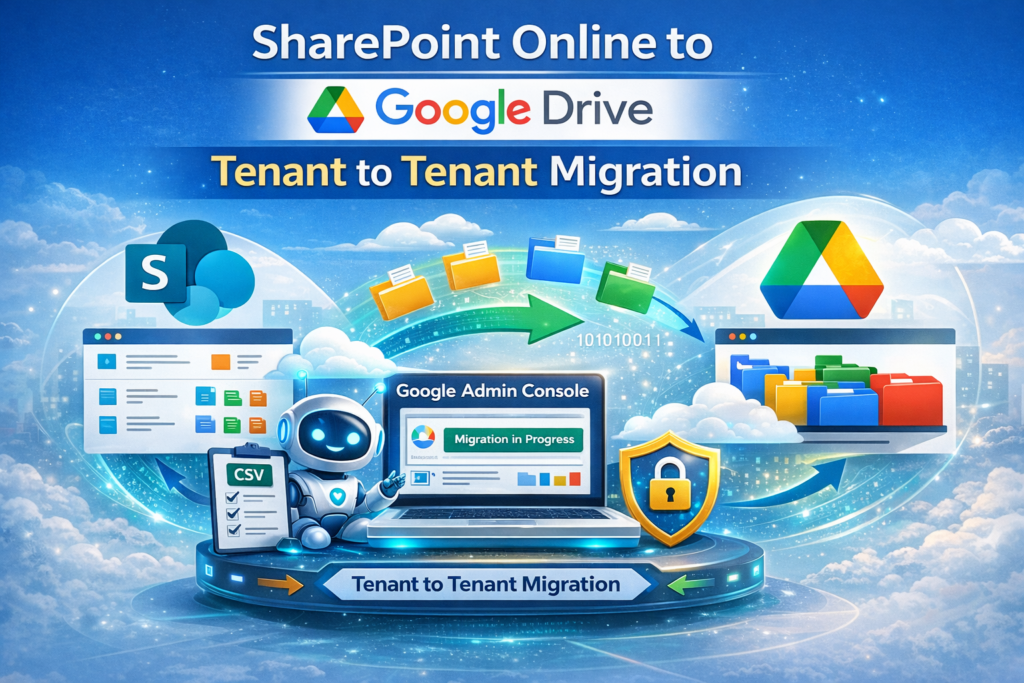
- 0.0.2 Migrating from SharePoint Online to Google Drive Shared Drives has become increasingly important for organizations looking to consolidate cloud platforms, streamline collaboration, and improve data accessibility. Whether driven by mergers, policy changes, cost optimization, or platform standardization, a structured migration ensures business continuity and zero data loss.
- 1 1. Purpose
- 2 2. Scope
- 3 3. Roles and Responsibilities
- 4 4. Prerequisites
This comprehensive SharePoint to Google Drive migration guide outlines a secure, step-by-step process using the Google Workspace Admin Console Data Migration tool. The procedure covers prerequisites, admin permissions, Shared Drive setup, SharePoint site URL extraction, CSV configuration, and migration monitoring — ensuring complete and structured data transfer.
Why SharePoint to Google Drive Migration Is Important
• Enables cloud consolidation and platform unification
• Improves cross-team collaboration using Google Workspace
• Reduces infrastructure complexity
• Ensures secure file transfer with admin-level control
• Maintains folder structure and data integrity
• Supports delta migration to capture newly added files
Step-by-Step Migration Process Overview
1. Create and configure the Google Shared Drive
2. Copy the Shared Drive ID
3. Extract SharePoint Site URL from SharePoint Admin Centre
4. Connect SharePoint Online inside Google Admin Console
5. Upload CSV file with source and destination details
6. Start migration and monitor progress
7. Run delta migration (if required)
The Google Admin Console dashboard allows administrators to track migrated files, skipped items, and errors in real time, ensuring full transparency and control throughout the migration process.
Benefits of Using Google Admin Console Data Migration Tool
• Secure OAuth-based connection
• Controlled admin-level execution
• Migration tracking dashboard
• Delta sync capability
• Structured file mapping
• No third-party dependency
1. Purpose
This SOP defines the step-by-step procedure to migrate SharePoint Online sites and document libraries to Google Workspace Shared Drives using the Google Admin Console Data Migration tool. The objective is to ensure secure, complete, and structured migration without data loss.
2. Scope
This procedure applies to IT Administrators responsible for managing Microsoft 365 SharePoint environments and Google Workspace environments.
Complete Guide to SharePoint Site Migration to Google Drive Shared Drives
3. Roles and Responsibilities
- IT Administrator – Execute migration and validate data integrity.
- Microsoft 365 Admin – Provide SharePoint access and authorization.
- Google Workspace Admin – Configure Shared Drives and manage permissions.
- Department/Business Owner – Validate migrated data.
Migrating from SharePoint Online to Google Drive Shared Drives has become a common need for organizations looking to streamline collaboration and unify their cloud storage. Whether it’s due to company policy, platform consolidation, or project requirements, a smooth migration ensures business continuity and avoids data loss.
4. Prerequisites
- Global/Admin access to Microsoft 365 and SharePoint.
- Google Workspace Super Admin access.
- Shared Drive created and storage verified.
- User permission mapping planned in advance.
- Removal of obsolete or duplicate data before migration.
Steps to Migrate Data Using Google Workspace (Admin Console)
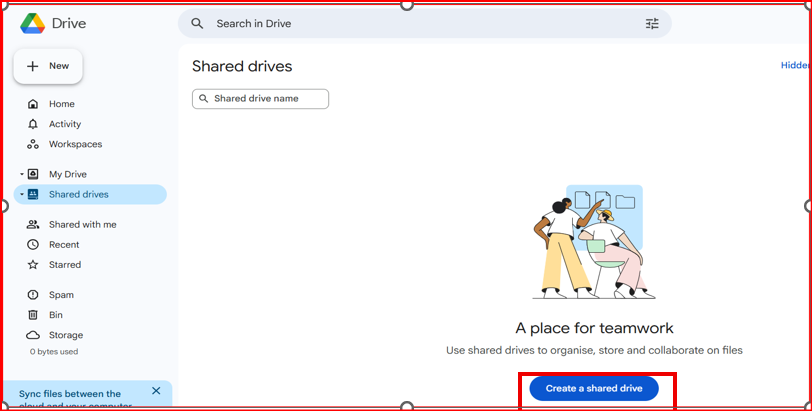
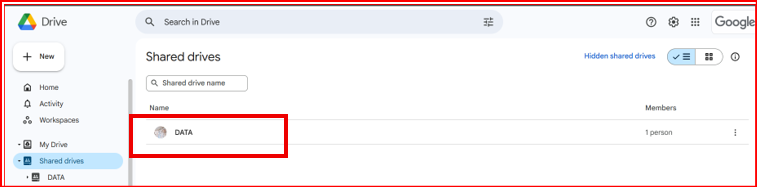
First, log in to the user’s Google Drive account. Then navigate to the Shared drives section. From there, you will see the option to create a new shared drive, as shown in the screenshot below.
Sign in to Google Admin Console
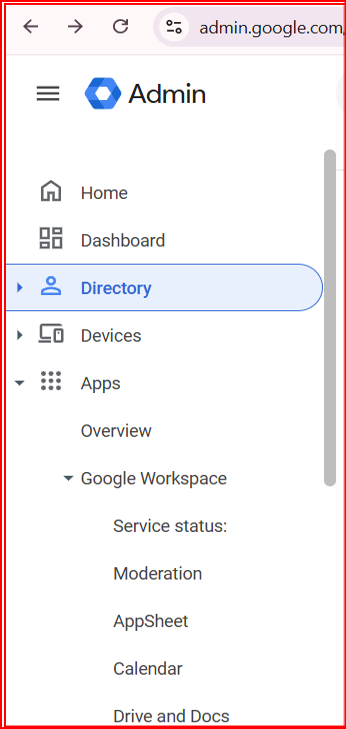
Visit admin.google.com and sign in with your Google Workspace Admin credentials.
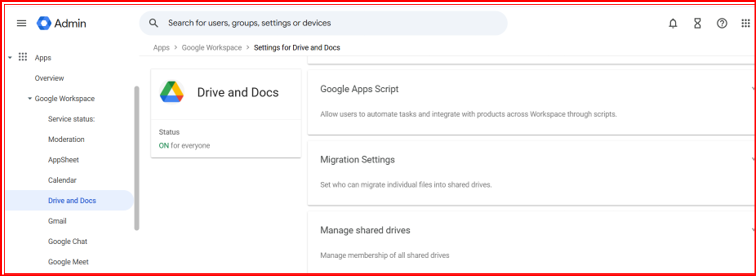
Next, go to Apps and select Google Workspace, Drive and docs.
click on manage shared drive.
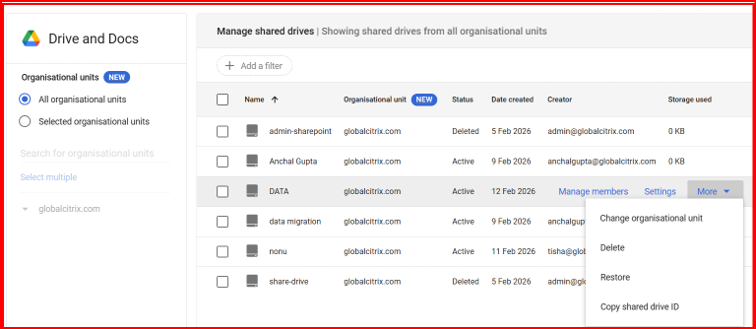
As shown in the screenshot below, locate the shared drive that was created for the SharePoint site migration.
Click on the More options (three dots) next to the shared drive, copy the Shared Drive ID, and paste it into a Notepad file. We will need to use this Shared Drive ID later in the CSV file.
Now, copy the SharePoint site URL from the SharePoint Admin Center.
Log in to your SharePoint Admin Center and go to Active sites. Select the specific site that you want to migrate.
Locate the Site URL, right-click on it, and copy the URL. Then paste it into the same Notepad file where you saved the Shared Drive ID.
Go to Google admin console
From the Admin Console dashboard:
Click Data, then select Data Import & Export → Data Migration.
Expand SharePoint Online, and click on Migrate.
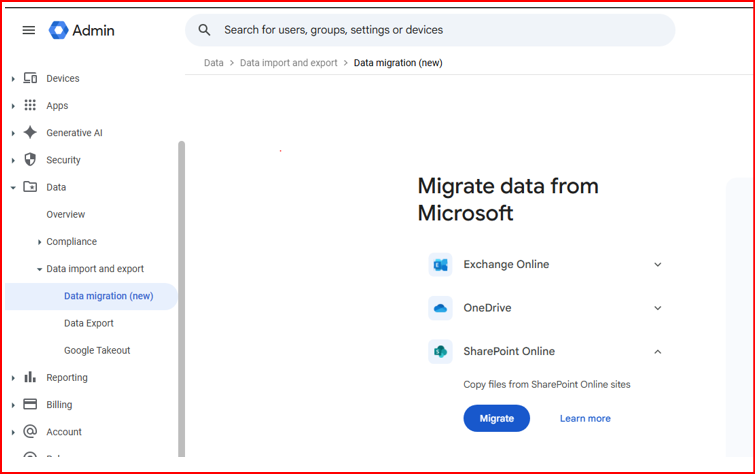
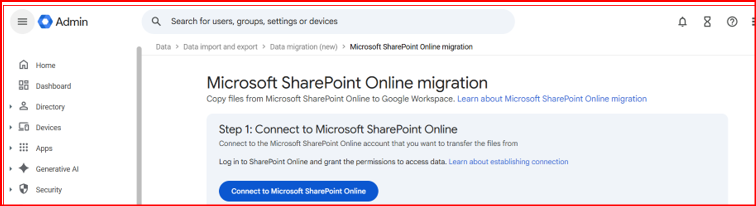
A new window will open. Here, you need to connect to Microsoft SharePoint Online.
Click on Connect to Microsoft SharePoint Online, then enter your Super Admin email ID and password to proceed.
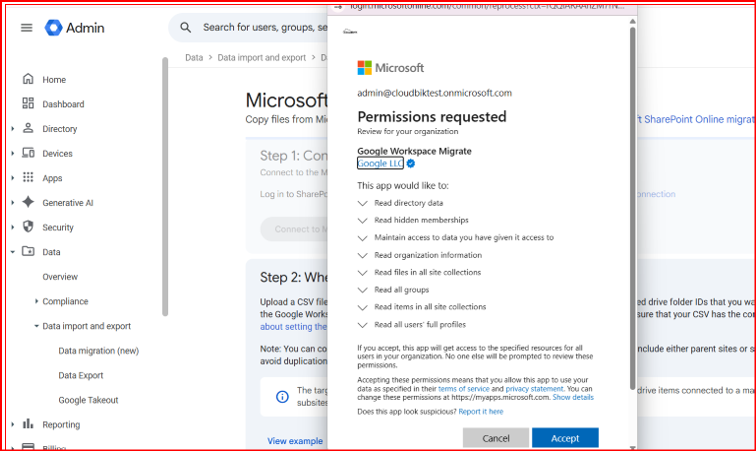
You will receive a pop-up window requesting permissions. Click on Accept to grant the required permissions and continue.
Your SharePoint Online has now been successfully connected, as shown in the screenshot below.
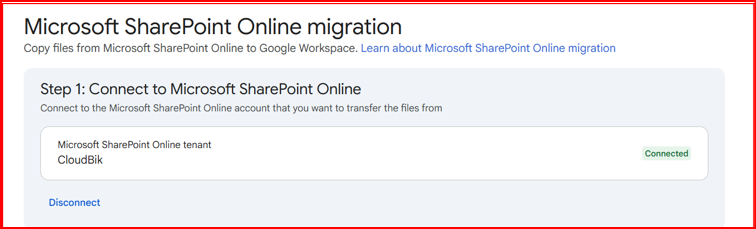
After connecting to SharePoint Online, you have completed Step 1 in the Google Admin Console.
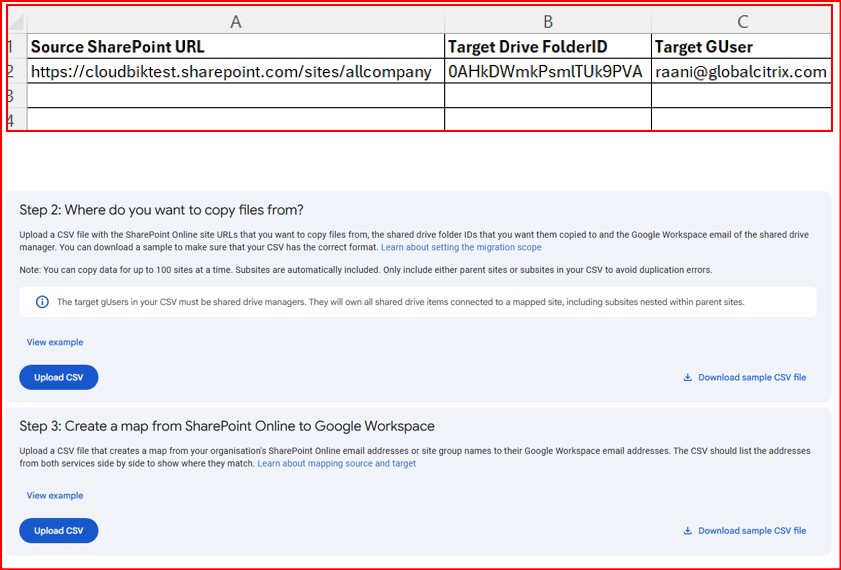
Now, proceed to Step 2, where you need to upload a CSV file. You can download the sample CSV file provided.
In the CSV file, enter the following details:
- SharePoint site URL
- Shared Drive ID
- Target email ID (the account where you created the Shared Drive)
Refer to the screenshot below for guidance. Once you have filled in the required information, upload the CSV file to complete Step 2.
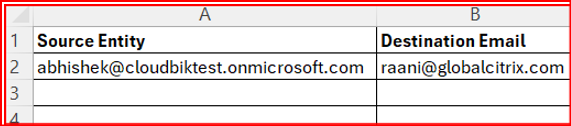
Step 3: Download the sample CSV file and fill in the required details as shown in the screenshot.
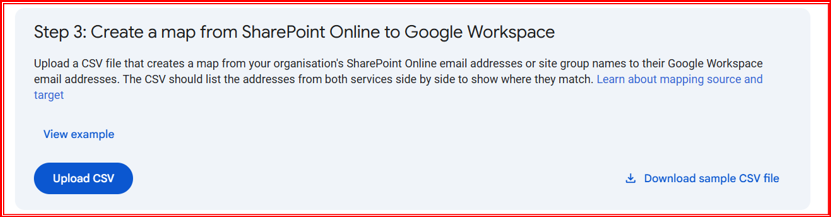
You can refer to the screenshot below.
In the Source column, enter the email address associated with the SharePoint site you want to migrate to the Shared Drive.
In the Destination column, enter the Google Workspace email address where the Shared Drive was created.
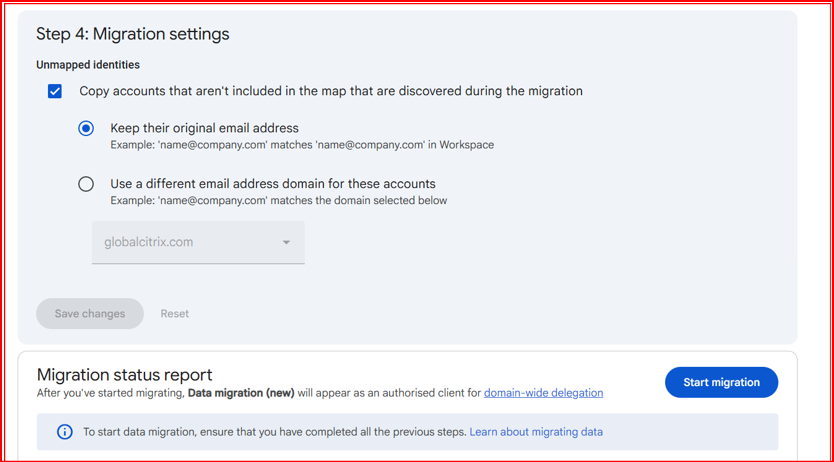
Step 4: Click on Start Migration.
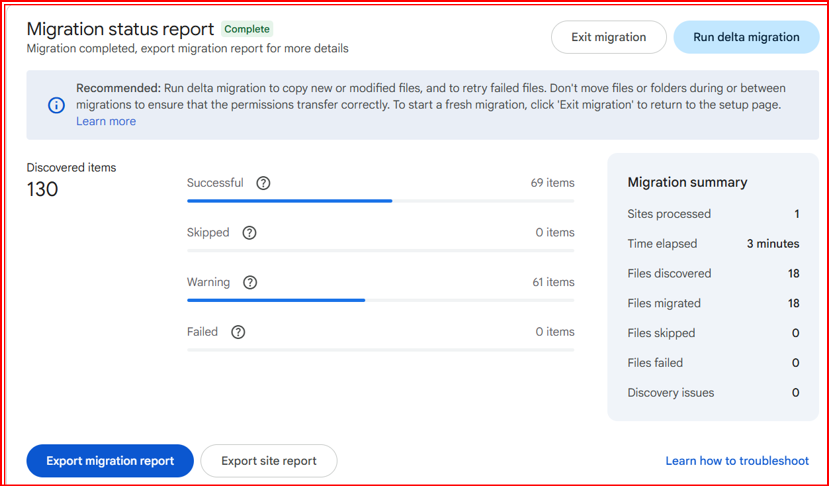
The migration process will begin, and you can monitor all activities, including the number of files migrated, skipped, or any errors, from this dashboard.
Once the migration is complete, you will see two options: Exit Migration and Run Delta Migration.
You can click on Run Delta Migration if the user has uploaded or created new files during the migration. This will ensure that any new or updated files are also migrated.
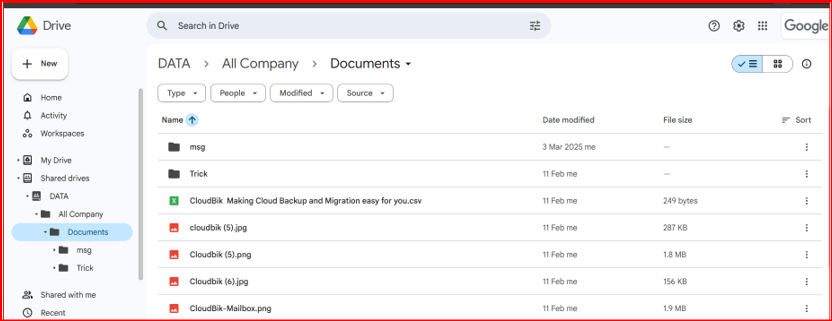
After the migration is complete, you can check the Shared Drive. You will see all the SharePoint site data available in the Shared Drive.
Limitations of Google Admin Console SharePoint Migration Tool
Limited Metadata Preservation
The tool may not fully preserve advanced SharePoint metadata such as:
- Custom columns
- Content types
- Workflows
- Retention labels
- Version history (may be limited or flattened)
No Full SharePoint Structure Migration
It primarily migrates files and folders. It does not migrate:
- SharePoint site structure
- Web parts
- Pages
- Lists (fully structured lists may not convert properly)
- Permissions at granular SharePoint level
Permission Mapping Limitations
Google Drive and SharePoint have different permission models. Complex SharePoint permission inheritance may not translate accurately into Google Shared Drive permissions.
Large Data Performance Issues
For very large SharePoint sites:
- Migration speed can be slow
- May require multiple runs
- Risk of timeout or throttling
No Advanced Scheduling Controls
The tool does not provide:
- Detailed batch scheduling
- Pre-stage migration planning
- Advanced cutover management
Limited Reporting & Error Handling
Basic reporting is available, but:
- Detailed logs may be limited
- Error resolution requires manual intervention
Supports Only Google Shared Drives, Not Individual My Drive
When migrating from SharePoint Online using the Google Admin Console migration method:
It does NOT support migration to individual users’ My Drive
- Cannot migrate directly into personal Google Drive accounts
- No automatic user-level folder mapping
- No direct OneDrive-style user mapping
No Automation for Complex Environments
It works well for basic migrations, but not ideal for:
- Multi-site enterprise environments
- Large-scale structured migrations
- Highly customized SharePoint deployments
No Built-In Pre-Migration Assessment
The tool does not analyze:
- Data size estimation
- Permission conflicts
- Unsupported file types
- Duplicate data cleanup
Migrating from SharePoint Online to Google Drive Shared Drives using the Google Admin Console Data Migration tool is a secure and structured approach for organizations planning tenant to tenant migration, cloud consolidation, or platform transition projects.
This SharePoint to Google Drive migration process supports admin-level control, CSV-based mapping, and delta migration to ensure complete data transfer with minimal disruption. While ideal for structured file migration, it may require additional planning for complex environments with advanced metadata and permissions.
With the right migration strategy, businesses can successfully execute tenant to tenant migration, maintain data integrity, and ensure seamless collaboration in their new cloud environment.