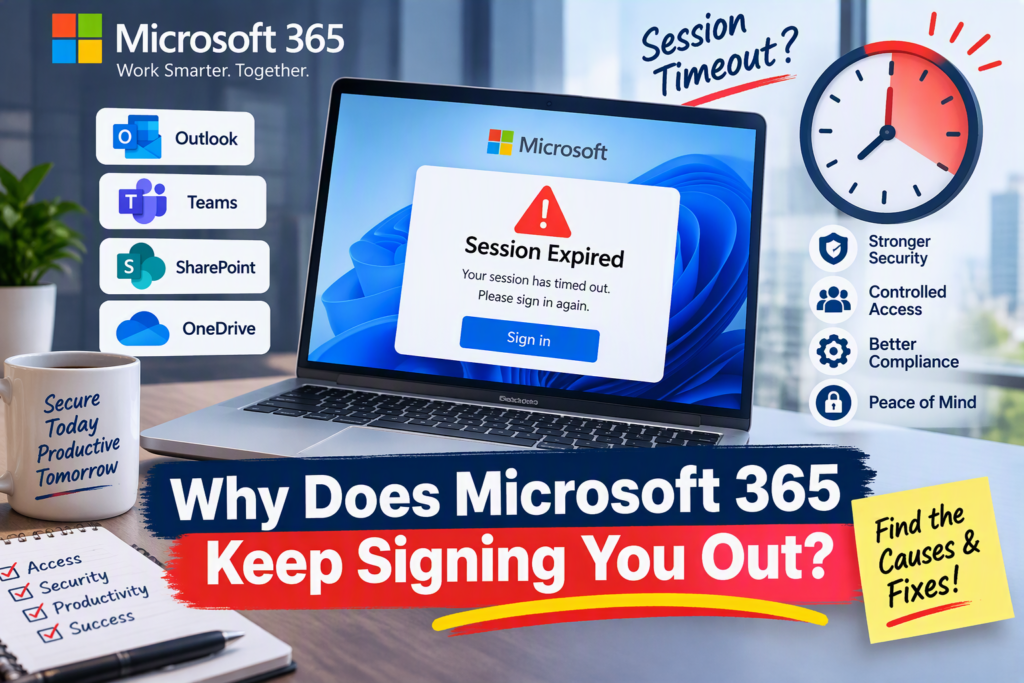

Have you ever been in the middle of replying to an email, collaborating in Microsoft Teams, or updating a SharePoint document, only to be unexpectedly asked to sign in again (Microsoft 365 Authentication Issues ) (? If so, you’re not alone.
Many Microsoft 365 users experience repeated Microsoft 365 Authentication Issues and assume something is wrong with their account or device. In reality, these sign-outs are often the result of security settings designed to protect business data.
Let’s explore why Microsoft 365 keeps signing users out, the most common causes, and what organizations can do to create a balance between security and productivity.
Contents
What Is a Session Timeout?
A session timeout occurs when an authenticated Microsoft 365 session expires, requiring the user to sign in again.
Think of it as a security checkpoint. Even after successfully signing in, Microsoft periodically verifies that the person accessing company resources is still authorized to do so.
These security checks help organizations protect sensitive information and reduce the risk of unauthorized access.
Why Does Microsoft 365 Keep Signing Users Out?
There isn’t always a single cause. Several security and configuration settings can trigger session timeouts.
Your Organization’s Security Policies
Many companies use Conditional Access policies in Microsoft Entra ID to control how often users must reauthenticate.
For example, IT administrators may require users to sign in again every:
- 8 hours
- 12 hours
- 24 hours
- 7 days
These policies are particularly common in organizations that handle sensitive customer, financial, or healthcare data.
Multi-Factor Authentication (MFA)
Organizations increasingly rely on MFA to secure user accounts.
While MFA significantly improves security, it may occasionally require users to verify their identity again, especially when:
- Signing in from a new device
- Accessing a new location
- Using an unfamiliar network
- Triggering a security policy
Browser Cache and Cookie Issues
Authentication tokens are stored within browser cookies.
When browser cookies become corrupted or are automatically cleared, Microsoft 365 may lose the authentication session and request another sign-in.
This issue is commonly seen when users:
- Clear browser history regularly
- Use private browsing modes
- Switch between multiple Microsoft accounts
- Use browser extensions that remove cookies
Device Compliance Requirements
Many organizations use Microsoft Intune to ensure devices meet security requirements.
If a device falls out of compliance due to:
- Missing updates
- Disabled antivirus protection
- Security configuration changes
Microsoft 365 may force the user to sign in again or block access entirely.
Inactivity Timeouts
Leaving Outlook, SharePoint, Teams, or other Microsoft 365 applications idle for extended periods can result in automatic sign-outs.
These inactivity controls help reduce the risk of someone accessing company information on an unattended device.
Is Microsoft 365 Signing You Out Too Often?
Not all session timeout configurations are ideal.
Organizations sometimes implement strict security policies without considering the impact on employees.
Common user complaints include:
- Constant login prompts
- Interrupted workflows
- Lost productivity
- Increased help desk tickets
While strong security is important, overly aggressive authentication settings can create unnecessary frustration.
How Organizations Can Reduce Login Fatigue
The goal is not to remove security but to implement it intelligently.
Use Risk-Based Access
Rather than forcing every user to sign in multiple times a day, organizations can apply stricter controls only when risk levels increase.
Examples include:
- Unusual login locations
- New devices
- Suspicious sign-in activity
- Unknown networks
Review Sign-In Frequency Policies
Many organizations inherit settings that were created years ago and never revisited.
Regular reviews help ensure policies support both security and business productivity.
Educate End Users
When users understand why they are being asked to sign in, they are generally more accepting of security controls.
Simple user education can dramatically reduce support requests and confusion.
Why Do Users Face Session Timeout Issues in Microsoft 365?
- Expired authentication tokens can force users to sign in again once the existing session expires.
- Browser cookies being cleared can remove stored authentication data, resulting in unexpected sign-outs.
- Inactive user sessions may be automatically terminated after a period of inactivity for security purposes.
- Password changes or account updates can invalidate existing sessions and require reauthentication.
- Device compliance policies may trigger sign-in requests when devices no longer meet organizational security requirements.
- Changes in network, location, or device can cause Microsoft 365 to reverify a user’s identity.
- Microsoft Entra Conditional Access policies may enforce sign-in frequency settings that require users to authenticate again after a specific period.
- Multi-Factor Authentication (MFA) can generate additional sign-in prompts when Microsoft detects unusual activity or increased risk.
- Tenant-to-tenant migrations often introduce new identity configurations, authentication settings, and security controls that impact user sessions.
- Exchange Online, SharePoint Online, and Microsoft Teams migrations may require users to establish new authentication sessions after migration activities.
- Enhanced security and Zero Trust implementations frequently increase authentication checks to improve protection against unauthorized access.
- Browser extensions, endpoint security tools, or privacy software can interfere with authentication cookies and session tokens.
How to Configure Session Timeout Policies Using Conditional Access
If your organization wants more control over how often users must sign in to Microsoft 365, you can configure a session policy using Microsoft Entra Conditional Access.
Prerequisites
Before creating a policy, ensure you have:
- Microsoft Entra ID Premium P1 or P2
- Global Administrator or Conditional Access Administrator permissions
- Multi-Factor Authentication enabled where applicable
Step 1: Sign in to Microsoft Entra Admin Center
- Open entra.microsoft.com
- Sign in with an administrator account.
- Navigate to:
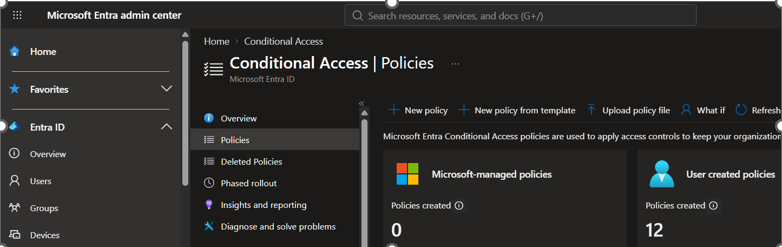
Step 2: Create a New Policy
- Click Create New Policy.
- Enter a policy name
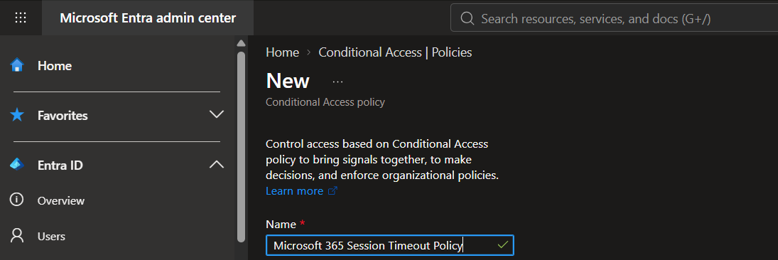
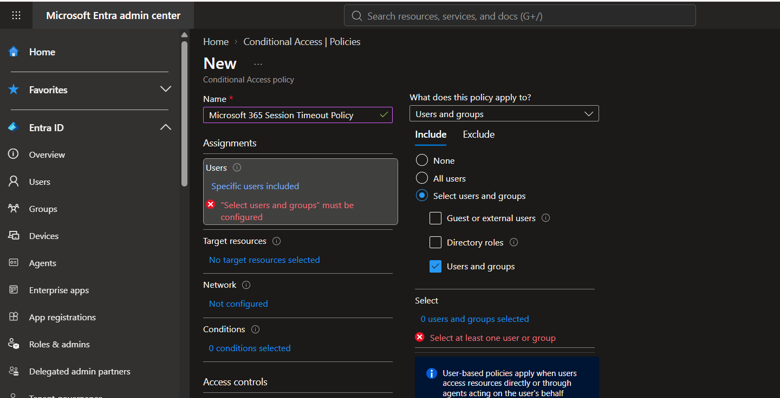
Step 3: Select Users or Groups
Under Assignments → Users, select the option that best suits your requirements.
Step 4: Choose Cloud Apps
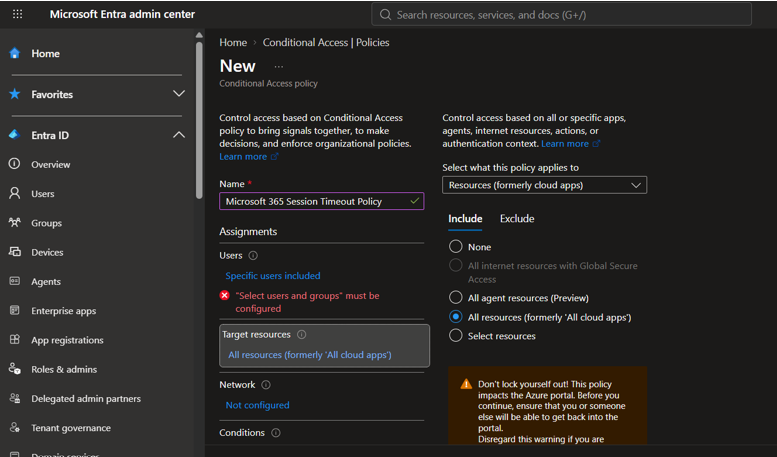
Under Target Resources:
- Select All resources (formerly “All Cloud Apps). (select the option that best suits your requirements)
- Choose:
Step 5: Configure Session Controls
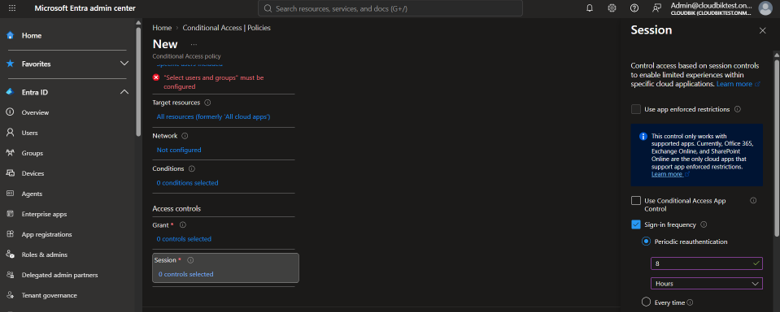
Navigate to:
- Access Controls → Session select → Microsoft 365 Sign-In Frequency
Enable:
Step 6: Enable the Policy
Before turning the policy on:
- Review all settings.
- Set Enable Policy

After deployment, monitor its impact.
Navigate to:
Plain Text
Entra Admin Center → Monitoring → Sign-in Logs
Look for:
- Excessive login prompts
- Authentication failures
- User complaints
- Location-based access issues
Monitoring helps IT teams fine-tune security without negatively affecting productivity.
Conclusion
Microsoft 365 session timeouts can be frustrating for users, but they play an important role in protecting organizational data. Whether caused by Conditional Access policies, Multi-Factor Authentication (MFA), device compliance requirements, or inactivity settings, these sign-in prompts are often the result of security measures designed to reduce risk rather than technical issues.
By understanding how session management works and implementing well-balanced sign-in frequency policies, organizations can strengthen security without creating unnecessary disruptions for employees. A thoughtful approach to Conditional Access helps strike the right balance between user productivity and data protection.
If your organization is planning a Microsoft 365 migration, tenant-to-tenant migration, or security modernization project, reviewing session timeout policies should be part of the overall strategy. Proper planning, testing, and user communication can significantly reduce login-related issues and improve the end-user experience.
At CloudBik, we help organizations successfully migrate and secure Microsoft 365 environments, ensuring that security controls such as Conditional Access, MFA, and session policies are configured according to business needs while maintaining a seamless user experience.