
Introduction
Google Workspace to google workspace (Copy data between Google Workspace accounts) migration is commonly required during business transformations such as mergers, acquisitions, domain changes, or organizational restructuring. A properly planned migration ensures secure data transfer, minimal downtime, and uninterrupted business operations.
Contents
- 1 Why Do Businesses Need Google Workspace to Google Workspace (GWS to GWS) Migration?
- 1.1 Prerequisites for Google Workspace to Google Workspace Migration
- 1.2 Follow the Steps Below:
- 1.2.1 Step 1: Sing in into destination google workspace admin console
- 1.2.2 Step 2: Open the data import tool
- 1.2.3 Step 3:- Connect the source Google workspace Tenant
- 1.2.4 Step 4: Approve The Authorization Request
- 1.2.5 Steps 5 Verify the connection:
- 1.2.6 Step 6: Upload the user Mapping CSV
- 1.2.7 Step 7: Configure Migration Setting
- 1.2.8 Step 8: Start the migration
Why Do Businesses Need Google Workspace to Google Workspace (GWS to GWS) Migration?
Organizations often need to migrate from one Google Workspace tenant to another as their business evolves. Google Workspace Tenant to Tenant Migration ensures users, emails, files, and collaboration data are moved securely while minimizing disruption.
Common Reasons for Google Workspace Tenant to Tenant Migration
- Company Mergers & Acquisitions
When two companies merge, they often need to consolidate separate Google Workspace tenants into one to simplify management and collaboration. - Business Divestitures
If a business unit separates into its own organization, data must be copied from the existing Google Workspace account to a new one. - Domain Change or Rebranding
Organizations changing their company name or primary domain may migrate to a new Google Workspace tenant that matches their new branding. - Tenant Consolidation
Businesses managing multiple Google Workspace tenants may combine them into a single environment to reduce administrative overhead and licensing costs.
Prerequisites for Google Workspace to Google Workspace Migration
Before starting the migration ensure all Prerequisites are completed
- You must have Super Admin access of both tenant (Source/Destination)
- Ensure all users who will receive migrated data already exist in the destination tenant.
- Domain verification completed
Follow the Steps Below:
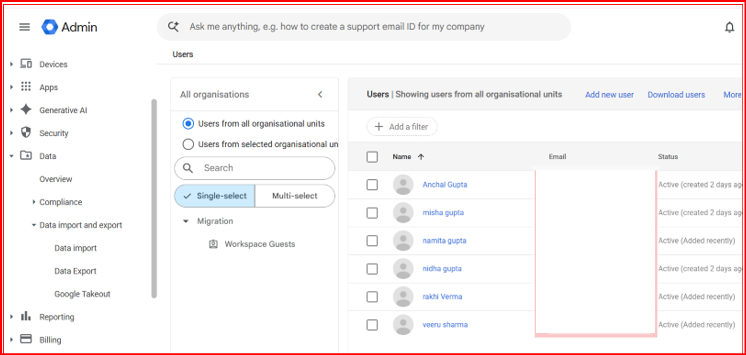
Step 1: Sing in into destination google workspace admin console
Log in to your destination google workspace admin console using a super admin account. This is the tenant where you want to import user mailbox.
Step 2: Open the data import tool
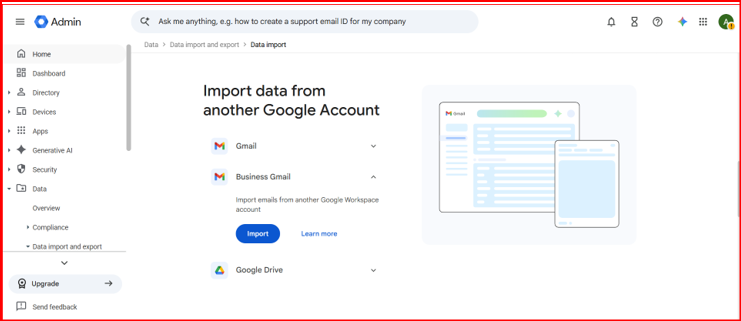
From the admin console, navigate to:
Data -Data import
Click Business Gmail – Import – Business Gmail- Import
Step 3:- Connect the source Google workspace Tenant
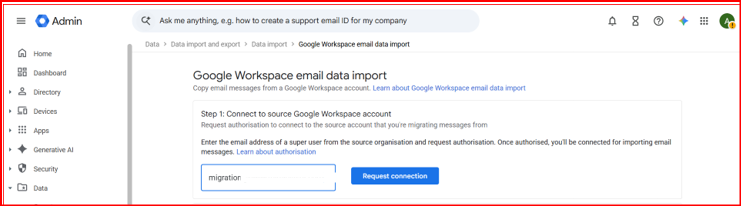
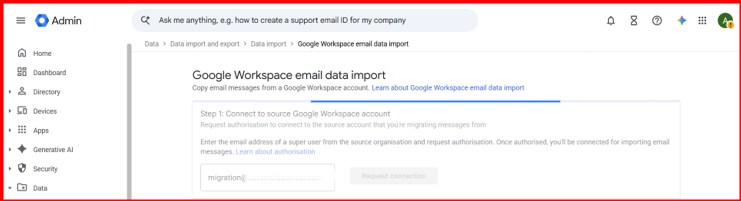
Enter the source Google workspace super admin email address click Request Connection.
This sends an authorization request to the source tenant so google can establish a secure connection
Step 4: Approve The Authorization Request
Sign in to the source google workspace super admin account.
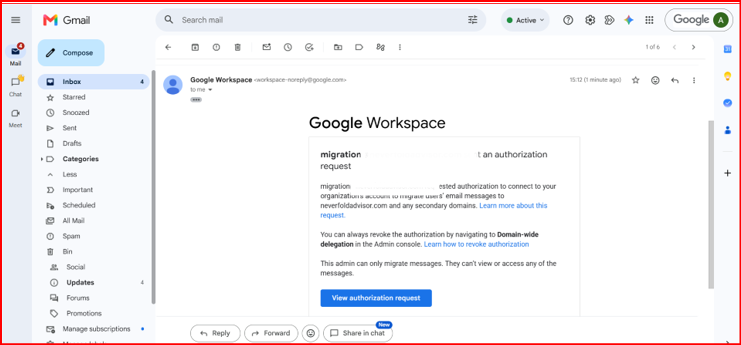
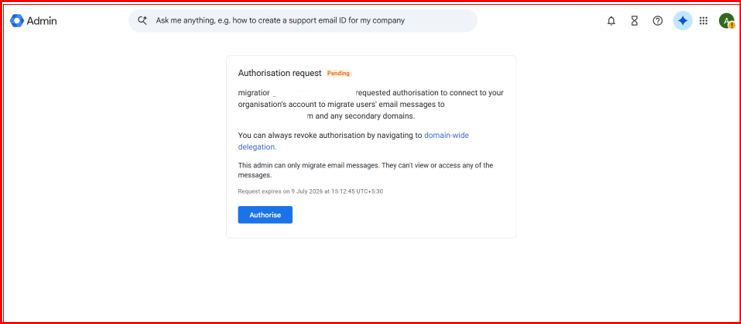
Locate the authorization request and click authorize to grant permission for the migration
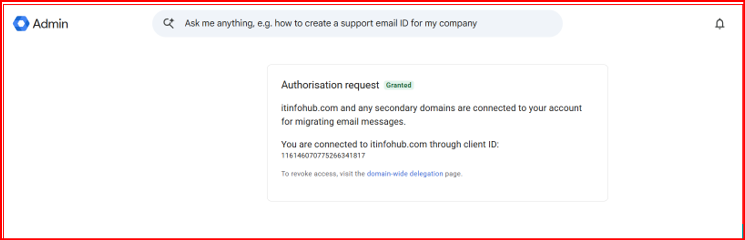
Steps 5 Verify the connection:
Return to the destination admin console and click verify authorization.
Google validates the connection between both google workspace organizations before allowing data migration.
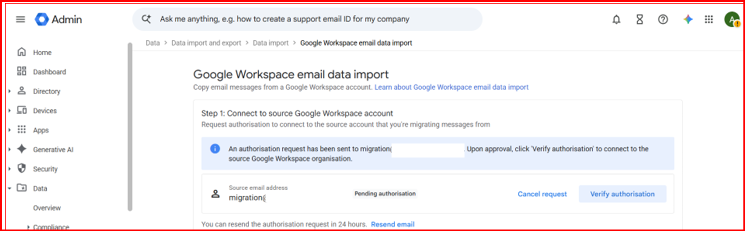
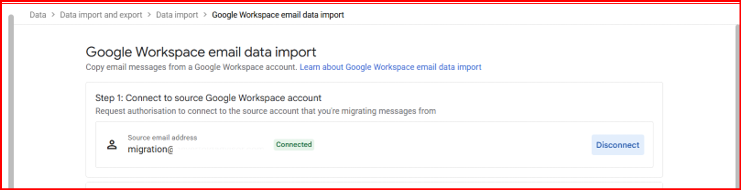
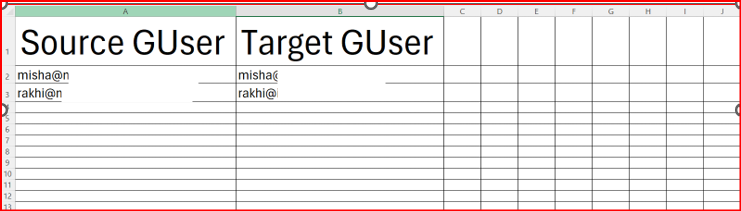
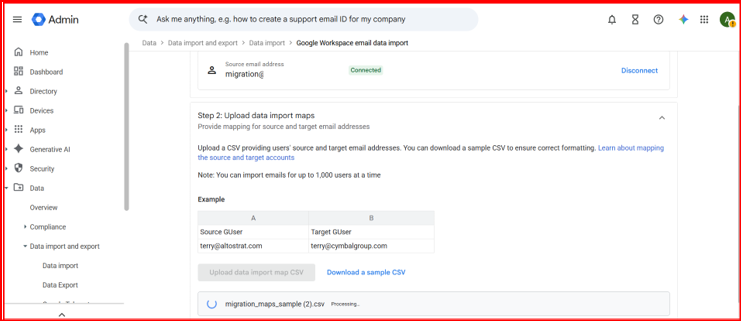
Step 6: Upload the user Mapping CSV
Upload the csv file that maps source users to destination users.
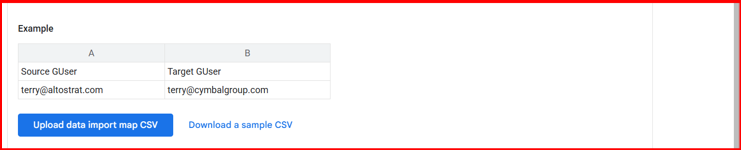
The CSV Format should be below
Step 7: Configure Migration Setting
Choose the migration options based on your requirements.

Step 8: Start the migration
Click Start Import to initiate the mailbox migration process and begin transferring data from the source tenant to the destination tenant.
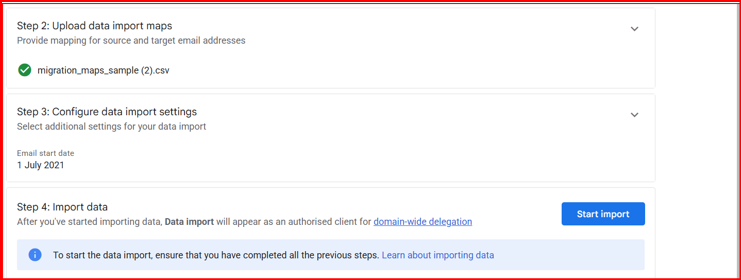
Google Workspace starts transferring mailbox data from the source tenant to the destination tenant. Administrators can track transfer data between google workspace accounts progress, status, and any issues directly from the Data Migration dashboard in the Google Admin Console.
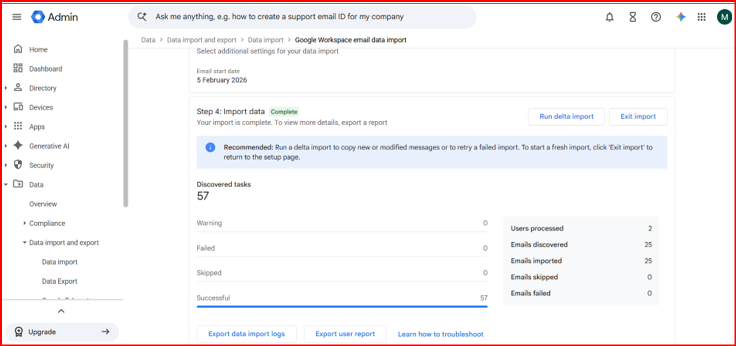
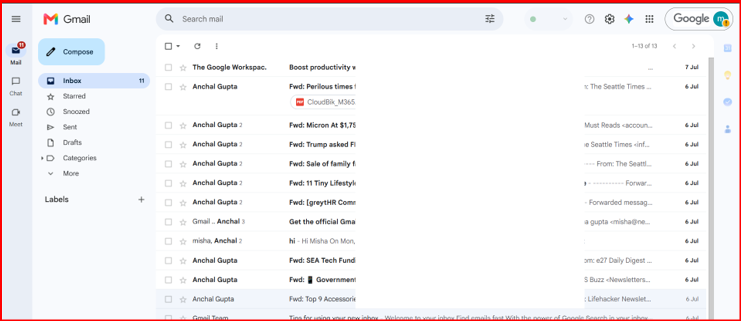
After the migration is complete, log in to the destination user’s email account to verify that all mailbox data has been migrated successfully.
Conclusion
Google Workspace Tenant to Tenant Migration native migration provides a simple and secure way to transfer mailbox data between two google workspace tenants. By configuring the required setting, validating users, and starting the import process, administrator can smoothly migrate email data while maintaining data integrity.