
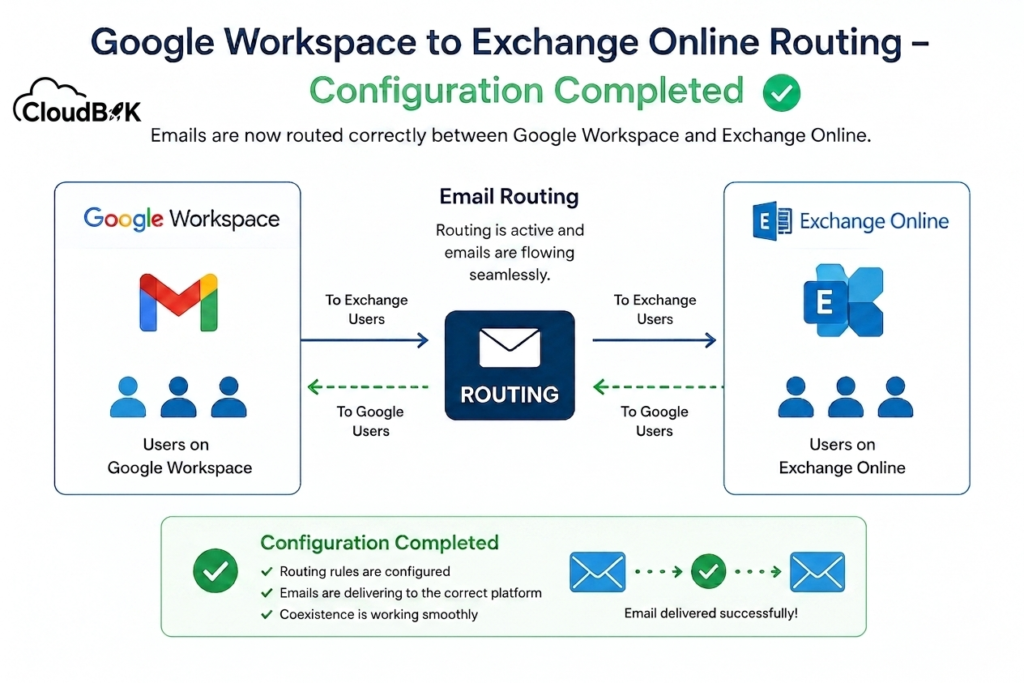

Email routing plays a crucial role during Google workspace to Microsoft 365 Mail Flow Coexistence Setup, especially when both systems are used together. It helps control how emails are delivered between different platforms so that every message reaches the correct mailbox without confusion or loss.
During migration, routing ensures smooth communication between users on Google Workspace and Exchange Online by applying predefined rules for email flow. This makes the transition easier, safer, and more organized without disrupting business communication.
Contents
What is Email Routing?
Email routing is the process of directing incoming and outgoing emails between different mail systems based on predefined rules.
In a migration scenario, routing ensures that emails sent to a domain are delivered to the correct mailbox location, even if users are split across multiple platforms.
For example, when using Google Workspace and Microsoft Exchange Online together, routing decides:
- Which emails stay in Google
- Which emails should be forwarded to Exchange
Why Do We Use Routing (GWS → Exchange Online)?
Routing is mainly used during migration and coexistence phases. Without routing, email delivery would fail or become inconsistent.
- To Support Coexistence
During migration, some users are in Google Workspace while others are in Exchange Online.
Routing ensures:
- Emails reach the correct platform
- Users can communicate across systems seamlessly
- To Enable Phased Migration
Organizations rarely migrate all users at once.
Routing helps:
- Move users in batches
- Keep remaining users active in Google
- Avoid disruption during transition
To Prevent Email Loss
Without routing:
- Emails may go only to one system
- Other users may miss important messages
Routing ensures:
- No email is lost
- Proper delivery based on user location
To Avoid Downtime
Changing MX records directly can cause downtime if not planned properly.
With routing:
- You keep Google as primary (MX)
- Exchange works in the background
- Users experience zero downtime
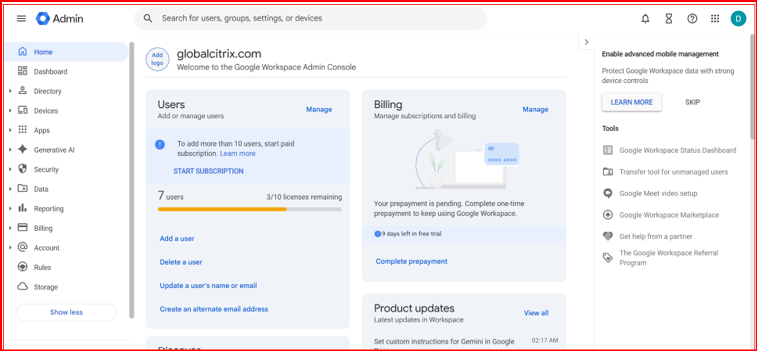
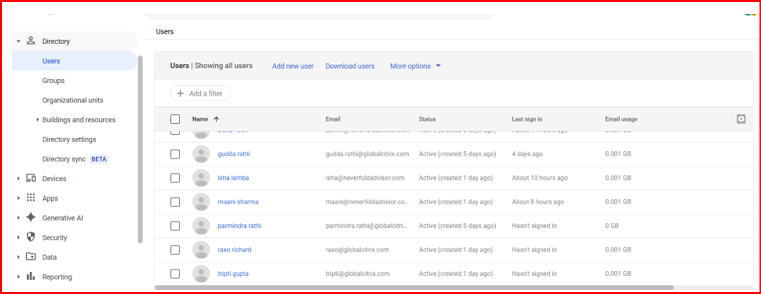
First of all, we need to set up routing between Google Workspace and Microsoft 365.
We have attached some screenshots for your reference.
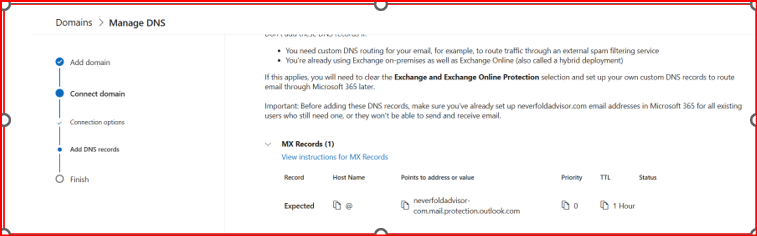
Step 1. Open the Microsoft 365 Admin Center and go to Settings → Domains.
Add TXT Record of Microsoft 365
Add your domain and complete only the TXT record verification process. Do not update or configure the MX record at this stage.
After domain verification is completed, copy the Microsoft 365 MX record details.
Use this MX record for Google Workspace routing configuration.
Copy and save the MX record details of Microsoft 365 in a Notepad file for further configuration and reference.
How to Setup Routing in Google Workspace?
Below is the process to configure routing between Google Workspace and Microsoft 365.
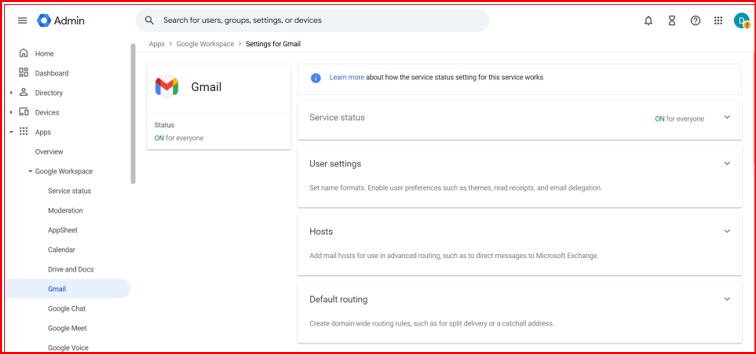
Step 2. Open the Google Workspace Admin Center and navigate to Apps → Gmail.
On the right-side panel, several options will appear. Locate the Hosts option and click on it.
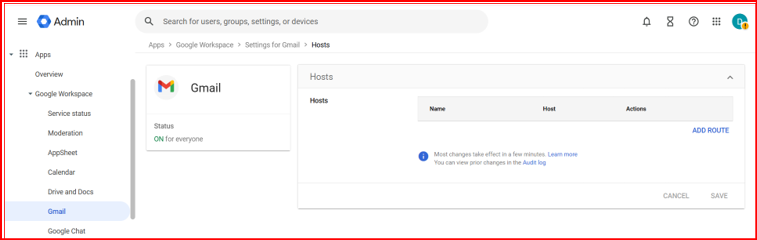
Step 3. Once you click on Hosts, you will be able to see all existing host configurations if any have already been created.
If you want to create a new host configuration, click on Add Route.
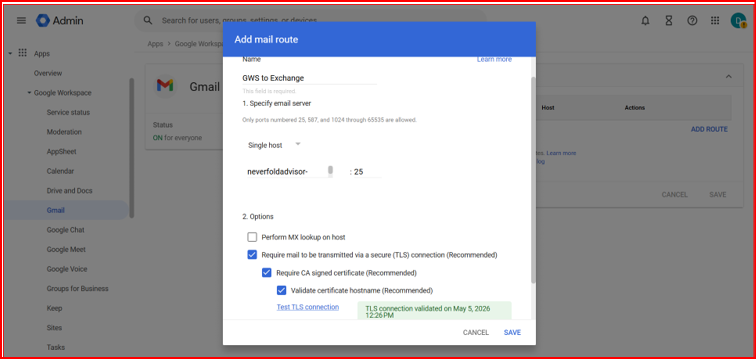
Step 4. Enter the routing name and paste the MX record that you copied from the Microsoft 365 Admin Center.
Then specify the port number as 25 and click on Test TLS Connection to verify the connectivity with Exchange Online.
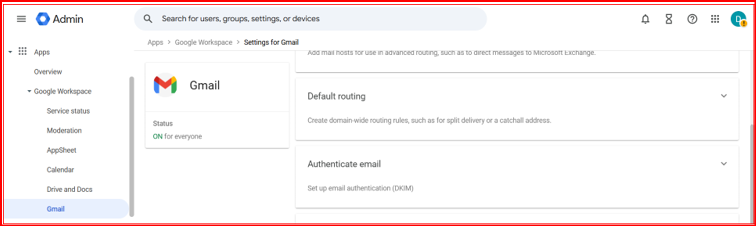
Step 5. Create Default Routing
Navigate to:
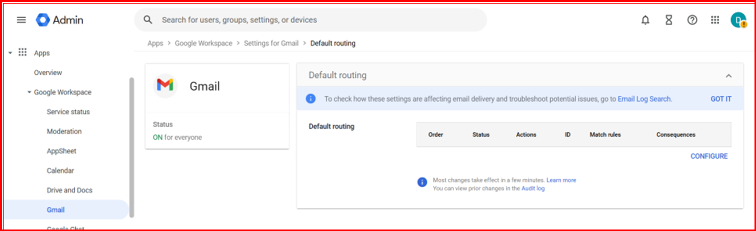
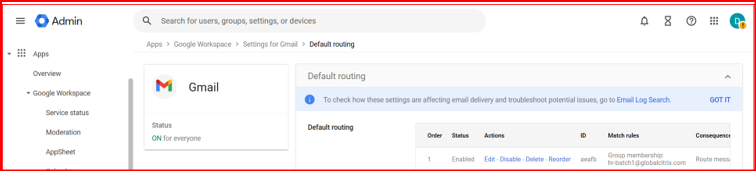
Apps → Google Workspace → Gmail → Default Routing
Click Configure to create a new default routing rule for forwarding emails from Google Workspace Coexistence with Microsoft 365
.
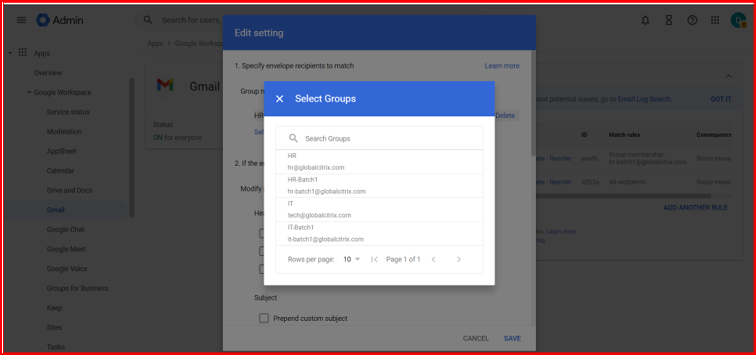
Select the batch-wise user group to apply the routing configuration only for migrated users.
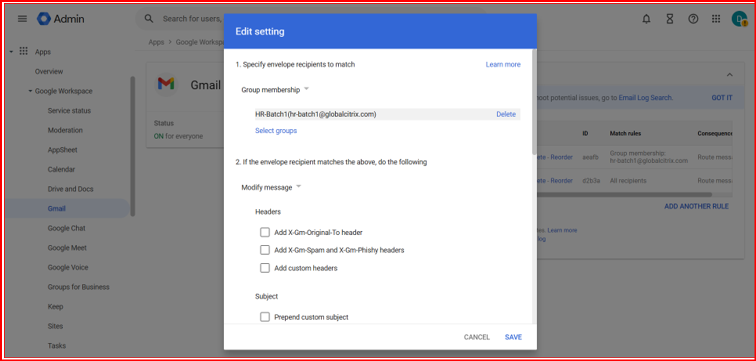
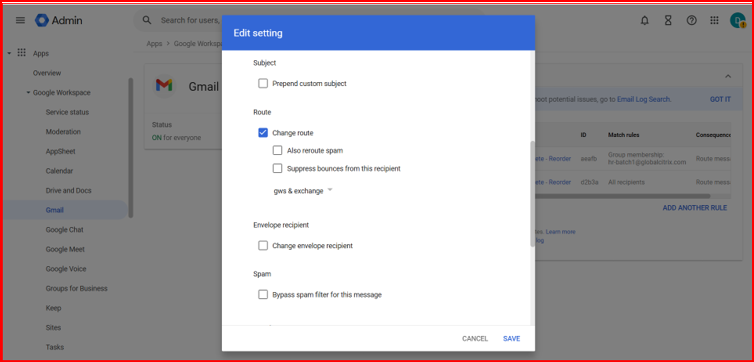
Select Change Route and choose the previously created Exchange Online mail route for forwarding emails to Microsoft 365.
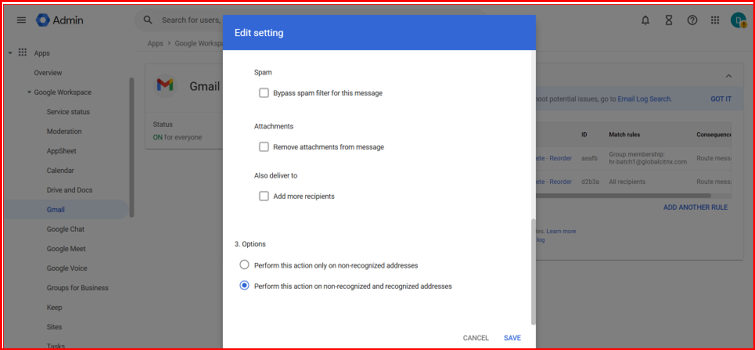
Select the option Perform this action on recognized and non-recognized addresses.
This means that whether the mailbox exists in Google Workspace or not, the email will be routed to Microsoft 365 according to the configured routing settings.
You also need to create another default routing rule for those users whose mailboxes are created directly in Microsoft 365 and do not exist in Google Workspace. For this routing rule, select the option Perform this action only on non-recognized addresses.
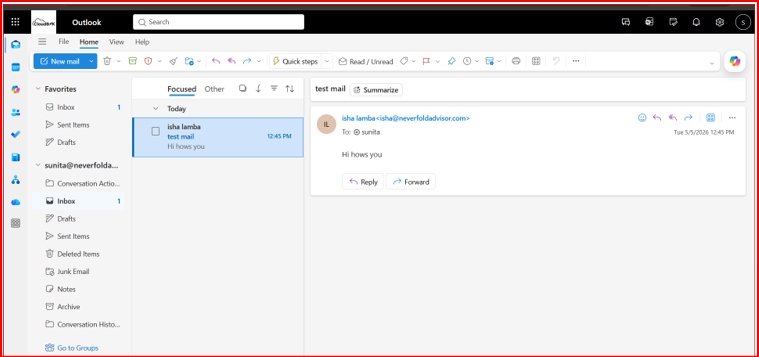
For example, if a sender sends an email to [email protected], the email is first received by Google Workspace. Google Workspace checks whether the user mailbox exists or not. If the mailbox does not exist in Google Workspace, it checks the configured routing rule and forwards the email to Microsoft 365. Microsoft 365 will then deliver the email successfully if the user exists there.
Conclusion
the Google Workspace to Microsoft 365 Migration Coexistence ensures a smooth and reliable email flow between both platforms, enabling organizations to operate in a hybrid environment without disruption. With proper routing rules in place, emails are delivered accurately to the correct mailboxes, whether users reside in Google Workspace or Microsoft Exchange Online.
This configuration helps maintain seamless communication during migration or coexistence scenarios, reduces email delivery conflicts, and supports business continuity. Once successfully completed, organizations benefit from centralized control, improved deliverability, and a more stable transition path toward full cloud email modernization.
Overall, a correctly configured routing setup acts as the backbone of hybrid email environments, ensuring users continue working without interruptions while systems stay fully synchronized.