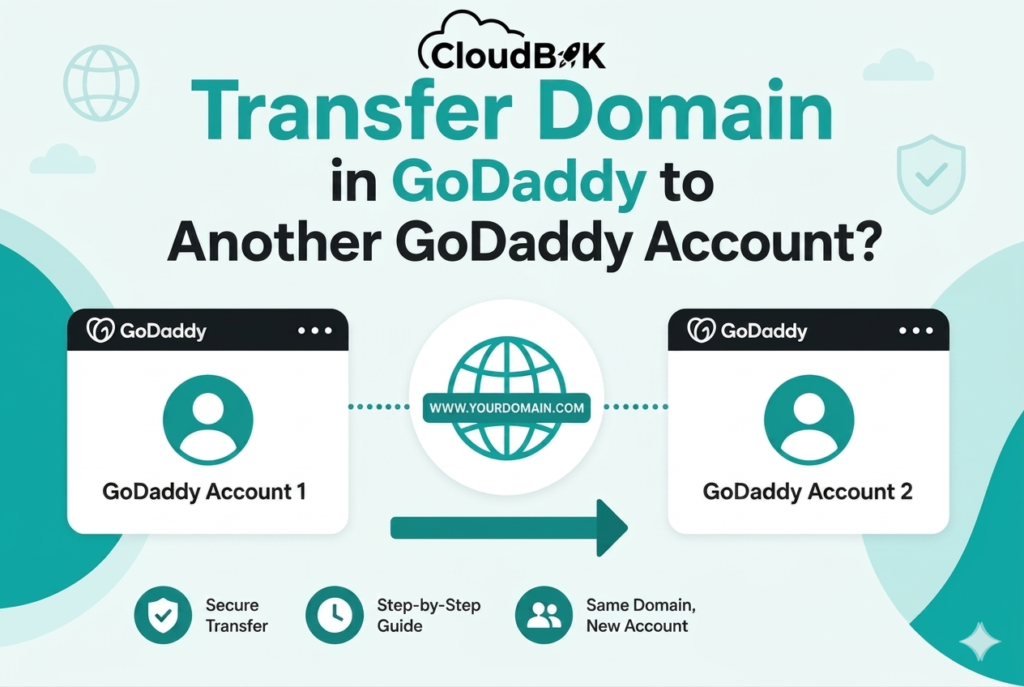

Sometimes organizations need to transfer GoDaddy domain to another GoDaddy account due to ownership changes, client management, merger, or team restructuring. The good news is that GoDaddy provides an easy account change process that allows users to transfer a domain internally without changing the register. In this guide, you will learn how to transfer domain between GoDaddy accounts step by step.
Contents
- 1 What Is a GoDaddy Account Change?
- 1.1 Why Transfer a domain between GoDaddy accounts?
- 1.1.1 Requirements Before Starting
- 1.1.2 Step 1: Log in to Your GoDaddy Account
- 1.1.3 Step 2: Open Domain Portfolio
- 1.1.4 Step 3: Choose “Transfer to Another GoDaddy Account”
- 1.1.5 Step 4: Enter New Account Details
- 1.1.6 Step 5: Confirm and Send Transfer Request
- 1.1.7 Step 6: Accept the Domain Transfer
- 1.1.8 How long dose a GoDaddy account transfer
- 1.1.9 Important Things to know:
- 1.1.10 ICANN Restrictions: – (Internet Corporation for Assigned Names and Numbers)
- 1.1 Why Transfer a domain between GoDaddy accounts?
What Is a GoDaddy Account Change?
A GoDaddy Account Change allows you to move a domain name from one GoDaddy account to another GoDaddy account while keeping the domain registered with GoDaddy.
Unlike a registrar transfer, which moves the domain to a different registrar, an account change is an internal transfer and is usually completed much faster.
Why Transfer a domain between GoDaddy accounts?
Transferring a domain between GoDaddy accounts is often necessary when ownership or management responsibilities change. Common reasons include selling a domain or website, handing over a project to a client, moving domains from a personal account to a business account, consolidating multiple GoDaddy accounts, or transferring assets during a company merger or acquisition.
An internal GoDaddy account transfer is a convenient way to change domain ownership without moving the domain to another registrar, ensuring that existing DNS settings, website hosting, and email services remain unaffected during the process. The Business usually move domain for reason such as:
- Client handover
- company rebranding
- Domain ownership changes
- IT department restructuring
- Agency-to-client domain transfer
- Business mergers
- Separate billing and management requirements
Requirements Before Starting
Prerequisites part:
- Both users have active GoDaddy accounts
- The domain is eligible for account transfer
- Domain privacy setting are accessible
- you know the recipient
GoDaddy customer ID
Email address linked to GoDaddy
Step by Step process to GoDaddy transfer domain from another registrar
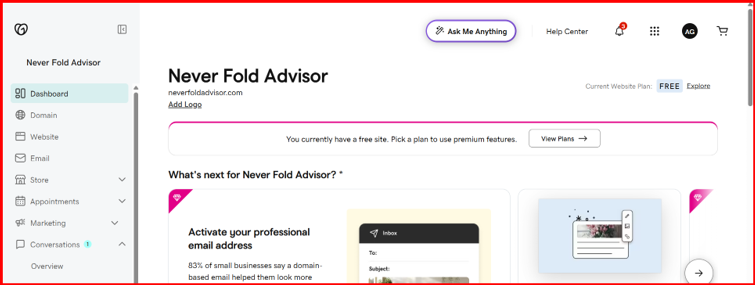
Step 1: Log in to Your GoDaddy Account
GoDaddy Login
Sign in using the account that currently owns the domain.
Step 2: Open Domain Portfolio
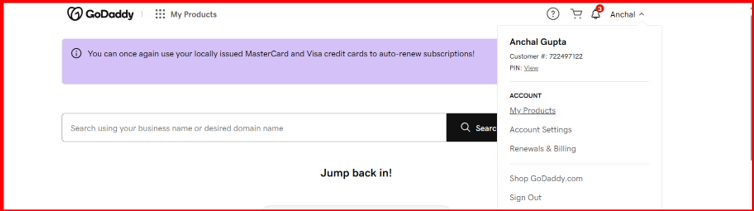
After login: Go to My Products
Open Domain Portfolio
Select the domain you want to transfer
Select the Registration Setting
Step 3: Choose “Transfer to Another GoDaddy Account”
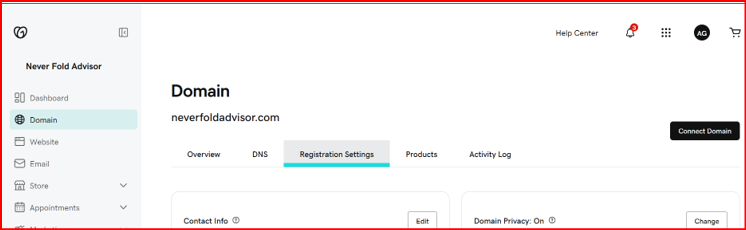
Step 4: Enter New Account Details
New owner’s GoDaddy customer ID
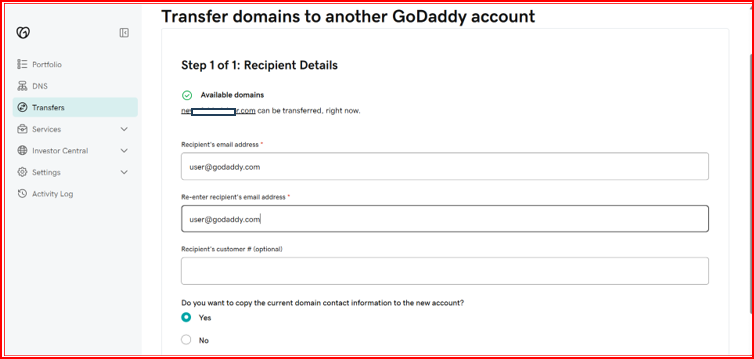
Step 5: Confirm and Send Transfer Request
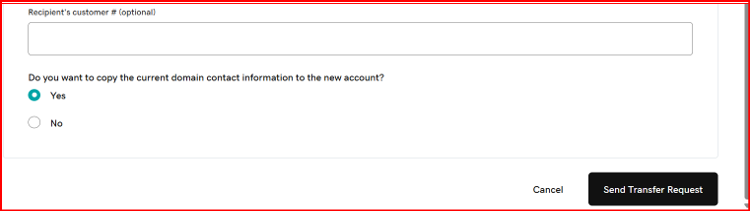
GoDaddy will now send a confirmation email to the receiving account owner.
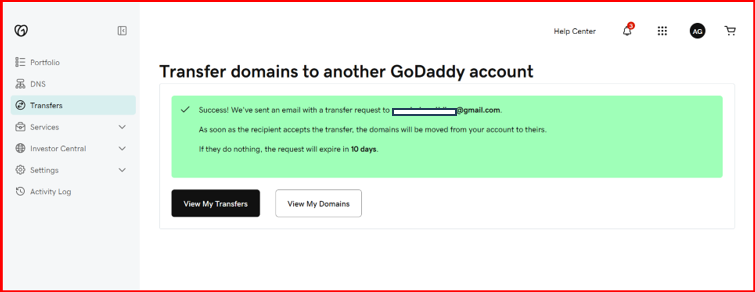
Step 6: Accept the Domain Transfer
The recipient must: Open the confirmation email
Click on (Activate Now) request
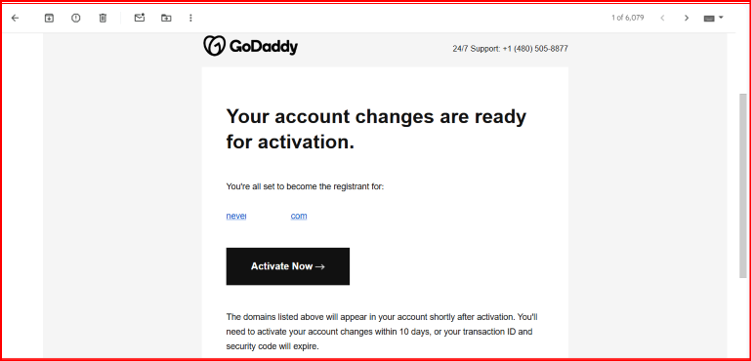
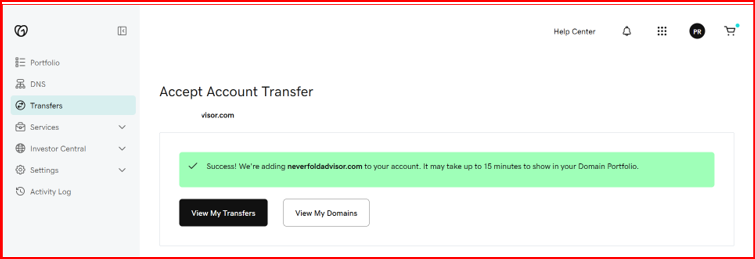
Once accepted, the domain appears in the new GoDaddy account.
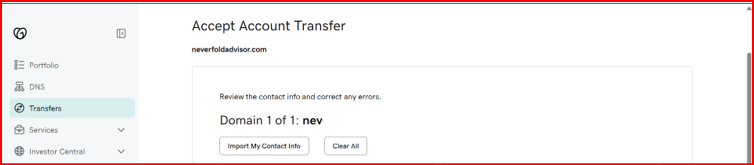
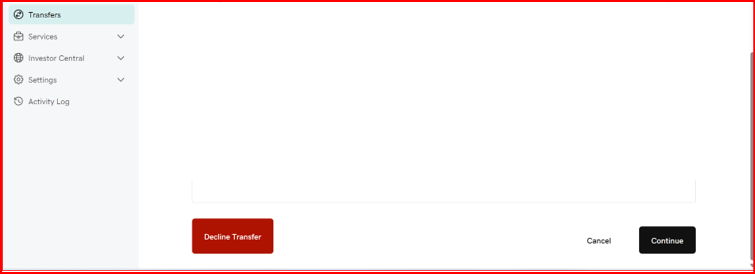
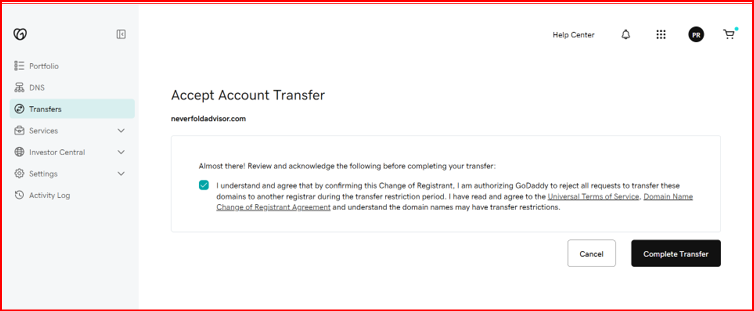
Accept the account Transfer request (Select the right check box) and (complete transfer)
Note:
How long dose a GoDaddy account transfer
Most internal transfer domain in GoDaddy complete within a few minutes: Up to 24 hours in some cases
Important Things to know:
Some domains may have transfer protection enabled. Ensure domain settings allow account changes.
ICANN Restrictions: – (Internet Corporation for Assigned Names and Numbers)
Recently registered domains may have temporary restrictions based on ICANN policies.
DNS Settings
In most cases:
DNS records remain unchanged
Website and email continue working normally
Best Practices Before Domain Transfer
To avoid configuration issues
- Backup DNS records
- Verify email routing
- Confirm MX records
- Check website hosting setting
- Notify It administrator before transfer
Common issues During GoDaddy Domain Transfer
Faster than register transfer
- Minimal downtime
- Easy management transition
- Secure ownership change
- No DNS interruption in most cases
- Simplified business domain management
GoDaddy DNS Zone File Loading Error – Quick Fix
If you see the error, We’re having trouble loading your zone file in GoDaddy DNS settings, it usually happens because of browser cache issues, blocked scripts, or temporary GoDaddy DNS loading problems.
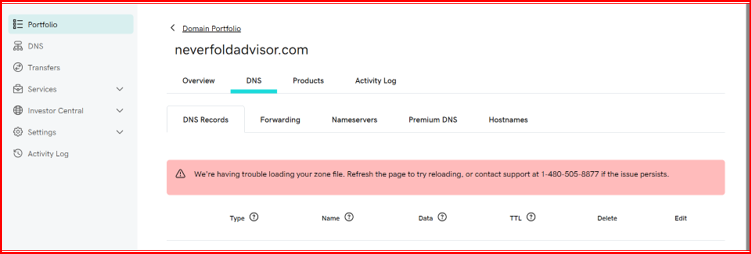
Press Ctrl + Shift + R to fix it.
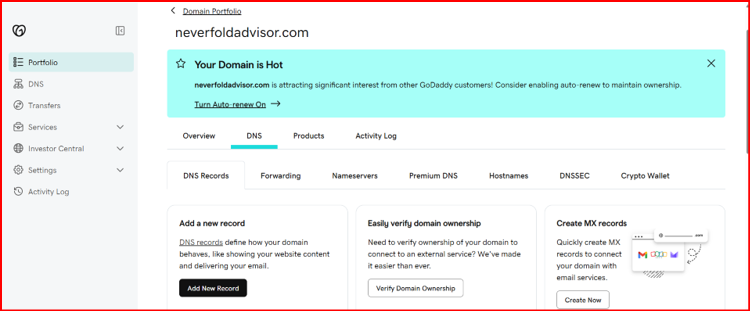
This will hard refresh the page, clear stored cache, and reload the latest DNS data from GoDaddy’s server. It often resolves temporary loading errors instantly.
Conclusion
GoDaddy transfer domain from another registrar and secure process when handled correctly. Whether you are moving domains for business restructuring, customer handover, or IT management purposes, GoDaddy’s internal account transfer system makes the process smooth and efficient.
Always verify domain settings, DNS records, and ownership details before completing the transfer to avoid service interruptions.
For businesses managing multiple domains, Microsoft 365 environments, and cloud platforms, professional migration planning can simplify how to transfer domain in GoDaddy during email migration, DNS configuration, and tenant-to-tenant migration securely and efficiently. CloudBik helps organizations streamline Microsoft 365, Exchange Online, SharePoint, OneDrive, and Teams migrations with secure and business-focused migration solutions.