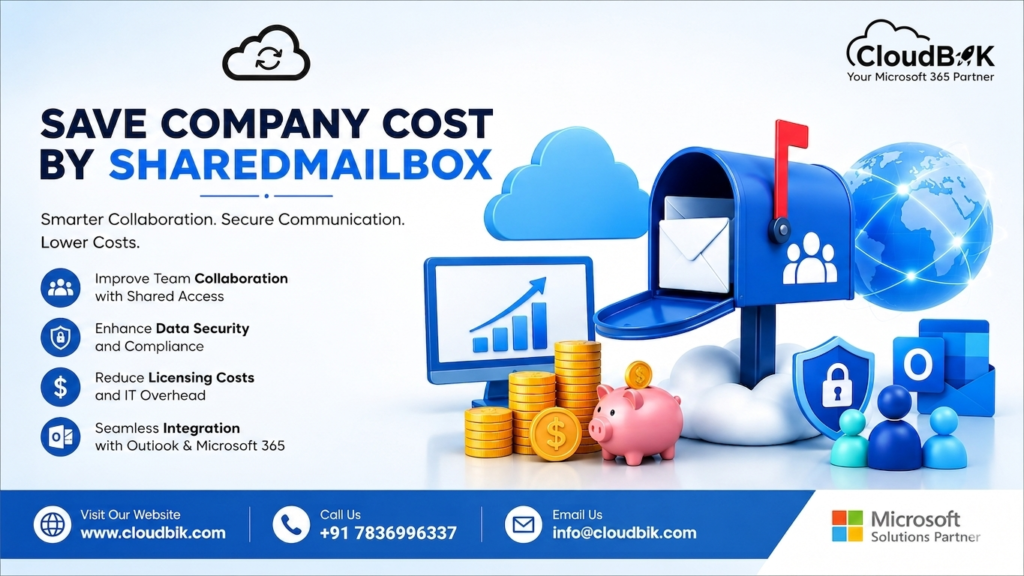

Many companies purchase unnecessary Microsoft 365 licenses for common mailboxes such as [email protected], [email protected], [email protected], or [email protected]. In most cases, businesses can reduce licensing costs by properly using Shared Mailboxes in Microsoft 365.
A Shared Mailbox allows multiple employees to access and manage emails from one common mailbox without needing a full Microsoft 365 license in many scenarios. This helps companies improve collaboration while optimizing IT expenses.
Contents
A Shared Mailbox is a mailbox designed for team access instead of individual users.
Common examples:
Multiple users can:
- Read emails
- Reply to emails
- Send emails as the shared mailbox
- Access calendar and contacts
Instead of purchasing:
- 1 separate license for every common mailbox
Companies can:
- Create one Shared Mailbox
- Allow existing licensed employees to access it
Example:
| Mailbox Type | License Required |
| User Mailbox | Yes |
| Shared Mailbox (under Microsoft limits) | Usually No |
If a company has:
- 20 department mailboxes
Using Shared Mailboxes instead of licensed users can save significant monthly licensing costs.
Shared Mailbox Without Delegation – Common Login Method
Some companies configure Shared Mailboxes as a direct login mailbox instead of using delegation permissions.
Example:
- [email protected] has username/password
- Multiple employees use same credentials
This method is commonly used for:
- Outlook access
- Create a Shared Mailbox in Microsoft 365 Admin Centre.
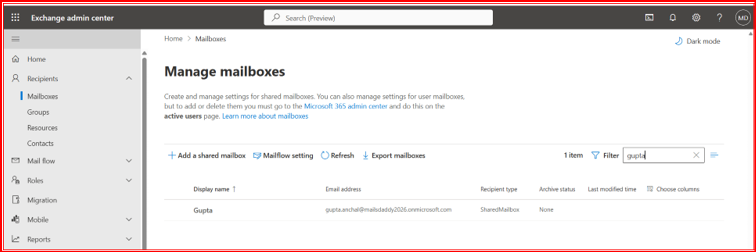
- Configure the Shared Mailbox for direct login access without mailbox delegation permissions
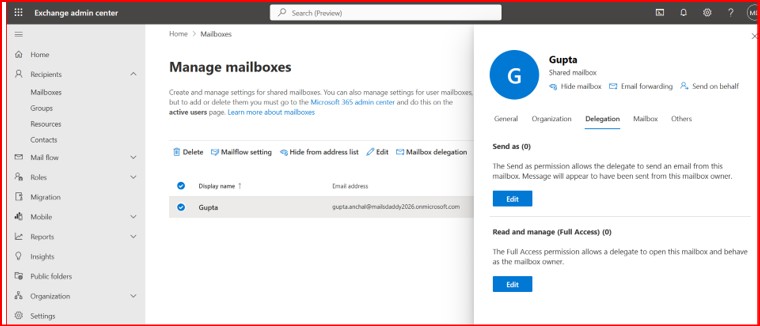
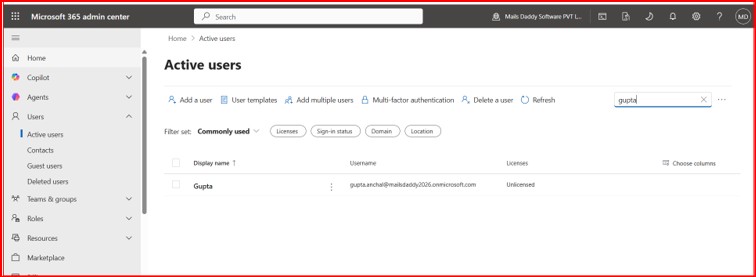
- Verify the Shared Mailbox account appears under Active Users without any assigned Microsoft 365 license.
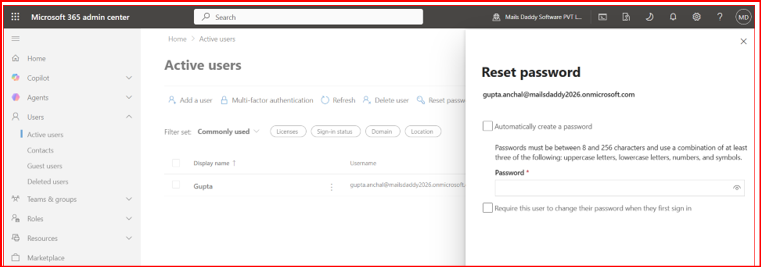
- Reset the Shared Mailbox account password from the Microsoft 365 tenant admin center.
- Open Microsoft Outlook and add the Shared Mailbox account using the mailbox login credentials.
- Configure normally account in office
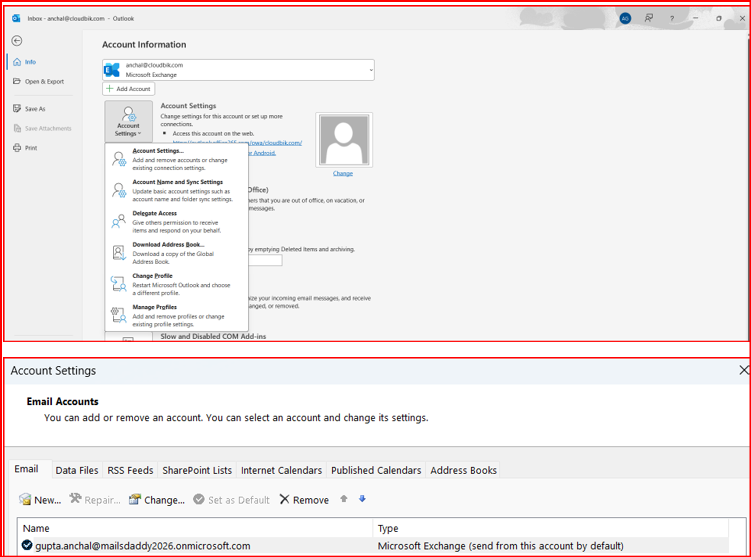
7. Verify that the Shared Mailbox account is successfully configured and accessible in Outlook.
- Teams meeting links
- Shared business communication
Although technically possible, Microsoft recommends proper delegation instead of credential sharing for better security and auditing.
Some companies configure Shared Mailboxes as direct login accounts instead of using delegation permissions.
Examples:
In some low-usage scenarios, companies also use Shared Mailboxes for individual users to help reduce Microsoft 365 licensing costs.
Example: [email protected]
If the user’s work is not business-critical and only basic email access is required, administrators may:
- Create a Shared Mailbox
- Enable direct login access
- Assign individual mailbox credentials
- Configure the account directly in Outlook
This approach is sometimes used for:
- Basic email communication
- Temporary users
- Low activity accounts
- Cost optimization scenarios
In this method:
- Admin creates the mailbox
- Enables sign-in for the account
- Assigns a password
- Adds the mailbox directly into Outlook
Users can then:
- Login directly using mailbox credentials
- Send and receive emails
- Use the mailbox like a common company account
This approach is often used by companies that want:
- Simple shared access
- One common mailbox for teams
- Reduced Microsoft 365 licensing costs
In this configuration, the Shared Mailbox follows the traditional Exchange authentication method, where users access Outlook by directly entering the Shared Mailbox email address and password instead of using delegated Modern Authentication access.
Using SSPR Policy for Shared Mailbox Password Reset
Many companies also configure:
- Self-Service Password Reset (SSPR)
through Microsoft Entra ID for common mailbox accounts.
What is SSPR?
SSPR (Self-Service Password Reset) allows users to:
- Reset passwords securely
- Recover account access
- Verify identity using authentication methods
without requiring IT administrator intervention.
How To configure SSPR
- Open Your Entra portal →search password Reset
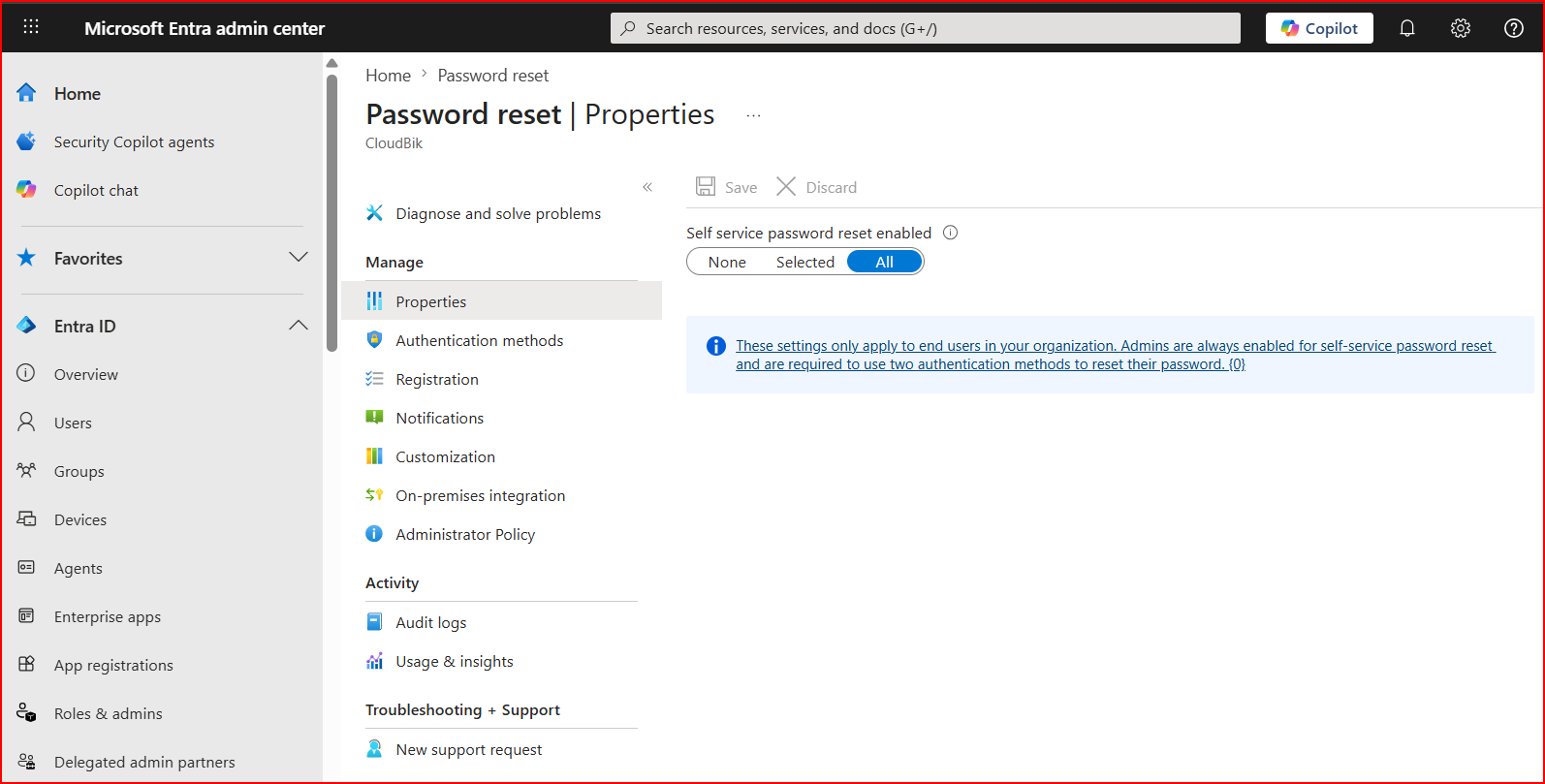
- If you are creating this policy at the tenant level, select All. However, if you want it to apply only to specific users →Selected
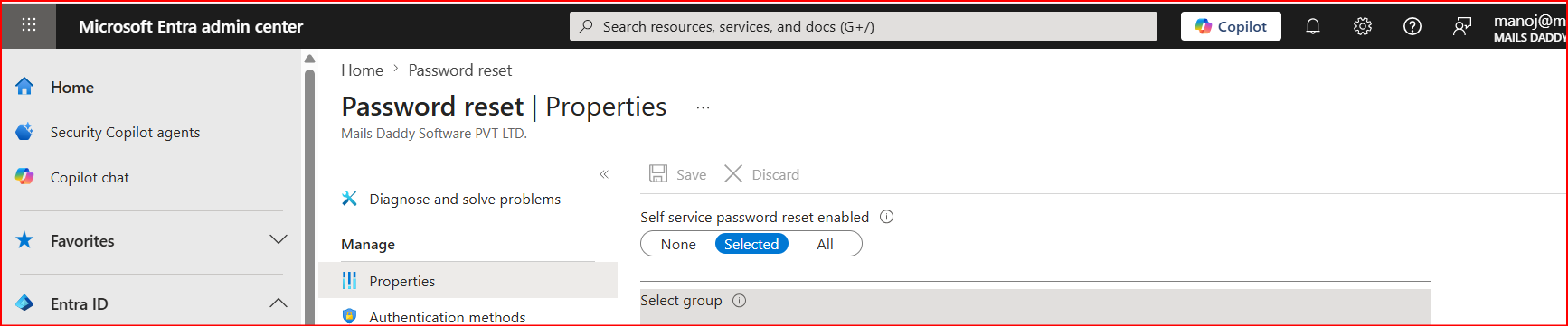
- Here, you need to select the group to which the chosen users will be added for the SSRP policy.
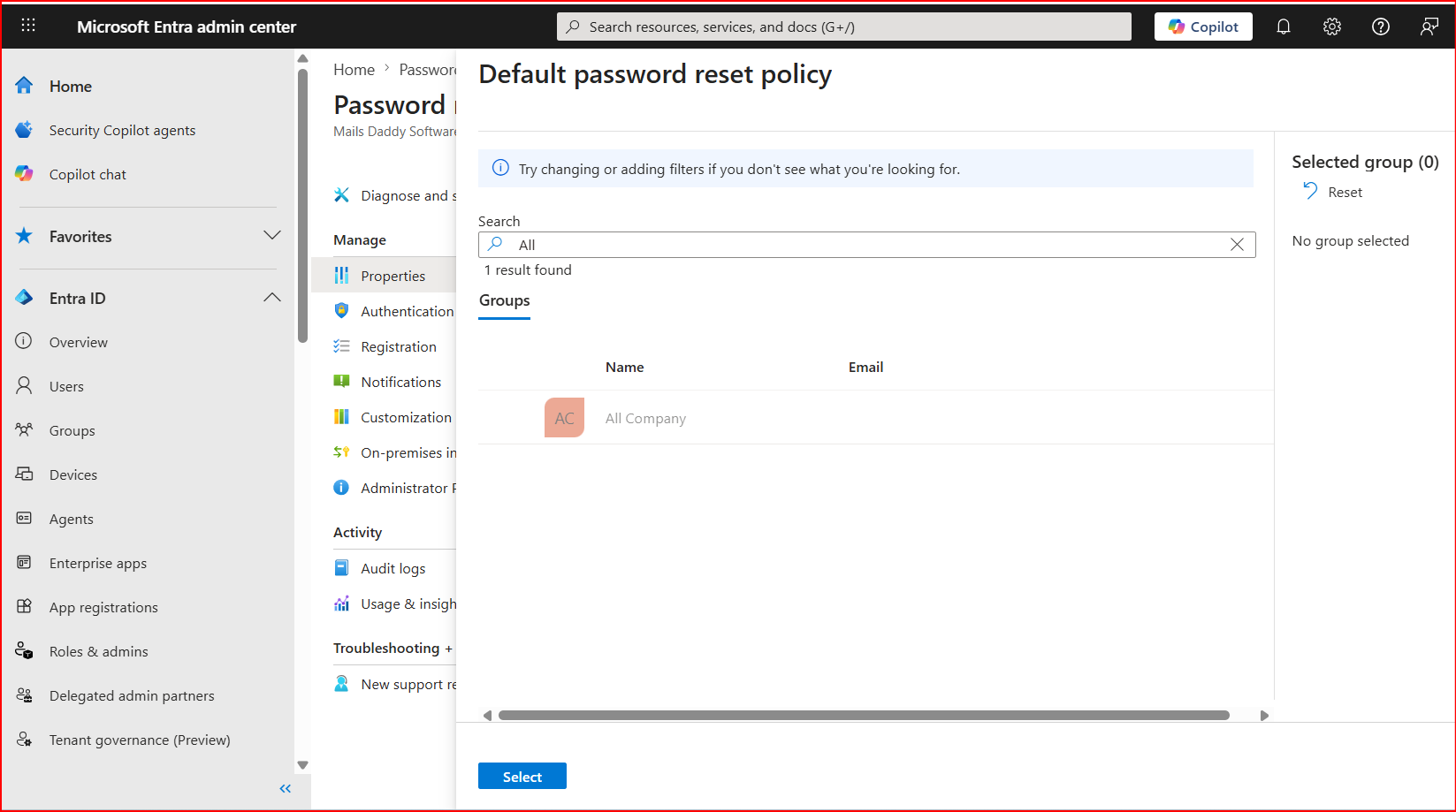
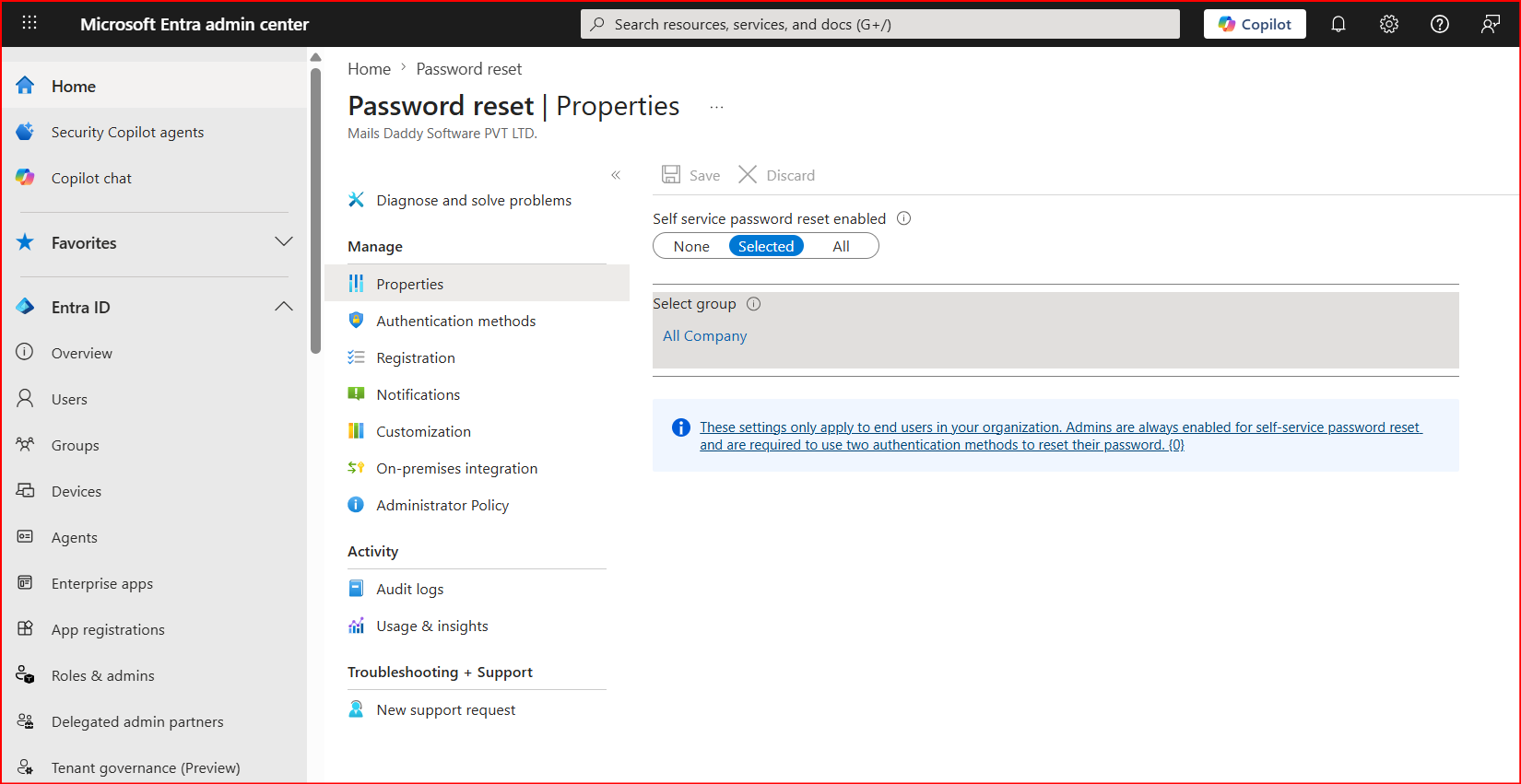
How Companies Use SSPR for Shared Mailboxes In some business environments?
- Shared mailbox credentials are managed by multiple authorized users
- Password expiration policies are enabled
- SSPR helps quickly reset passwords when required
Example workflow:
- Shared mailbox password expires
- Authorized team member opens Microsoft password reset portal
- Identity verification is completed
- Password is reset securely
- Outlook access continues without IT downtime
Using Teams Meeting Links Without Full Teams Access
Many companies notice:
Shared mailbox users cannot fully login to Teams desktop app
But Teams meeting links still work
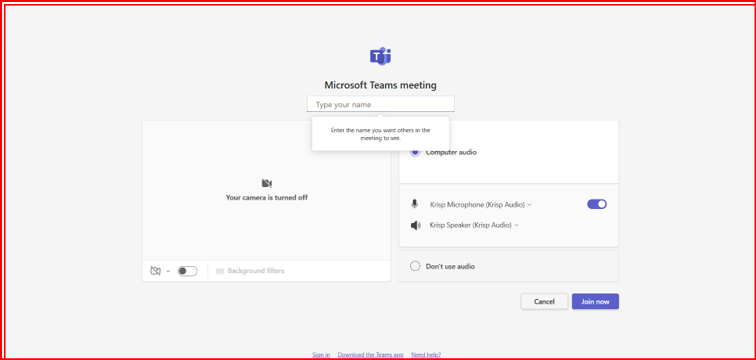
Because Teams meeting participation uses:
- Web authentication tokens
- Meeting guest access
- Browser-based authentication
Users can:
- Join meetings through browser
- Authenticate using Microsoft identity session
- Access meeting audio/video
Even if:
- Full Teams license is not assigned
- Desktop Teams app login fails
Authentication Method Used Modern Microsoft 365 environments use Modern Authentication.
When a Shared Mailbox is configured using delegation permissions in Microsoft 365, users do not need the Shared Mailbox password.
Users sign in with their own Microsoft 365 account, and Microsoft Modern Authentication uses:
- OAuth 2.0
- OpenID Connect
- Secure authentication tokens
After login, the Shared Mailbox automatically appears in Outlook without direct mailbox login.
Benefits:
- No password sharing
- MFA support
- Better security
- Easy auditing
- Secure Outlook access using delegated permissions and token-based authentication
Conclusion
Shared Mailboxes in Microsoft 365 are an effective solution for companies looking to reduce unnecessary licensing costs while managing common business email accounts efficiently. Businesses can use Shared Mailboxes for support, HR, accounts, and other common communication purposes without purchasing separate licenses for every mailbox.
Companies may configure Shared Mailboxes using direct login methods or delegation permissions based on business requirements. However, Microsoft recommends using delegation with Modern Authentication for better security, MFA support, auditing, and secure token-based access without password sharing.
With proper configuration, Shared Mailboxes help organizations improve collaboration, simplify communication management, optimize IT expenses, and maintain a secure Microsoft 365 environment. For businesses planning tenant-to-tenant migrations, CloudBik also helps migrate Shared Mailboxes securely while preserving mailbox access, permissions, and business communication continuity during Microsoft 365 migrations.